
BilliardBot — project illustration

BilliardBot 🎱🤖


Billiard Bot — project illustration

Introduction


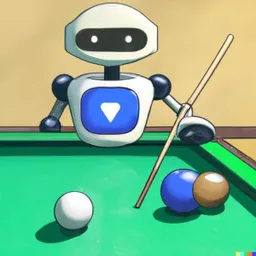
  • BilliardBot is a pool-playing robot that uses computer vision to detect balls and navigate the table. Once positioned and aligned, it strikes the cue ball with a solenoid-powered kicker.

High-level overview



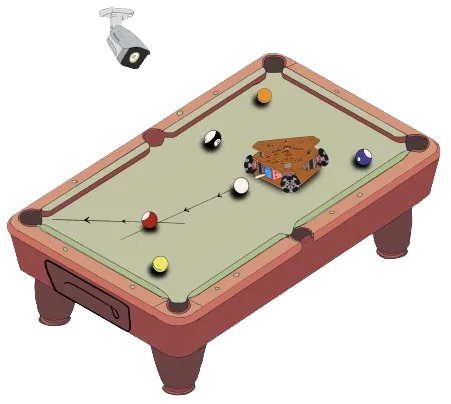

  • OpenCV analyzes the overhead camera feed to track the balls and robot, then calculate distances and trajectories across the pool table.
  • The software sends commands to an ESP32 over Wi-Fi, directing the robot to specific coordinates.
  • Once the robot reaches its target position and orientation, it charges the capacitors and discharges them through a solenoid to strike the cue ball along the intended path.
High level overview — project illustration
Highlights — project illustration

Side view (2× speed).
Highlights — project illustration
Top view (2× speed).

Mechanical design


Omniwheels

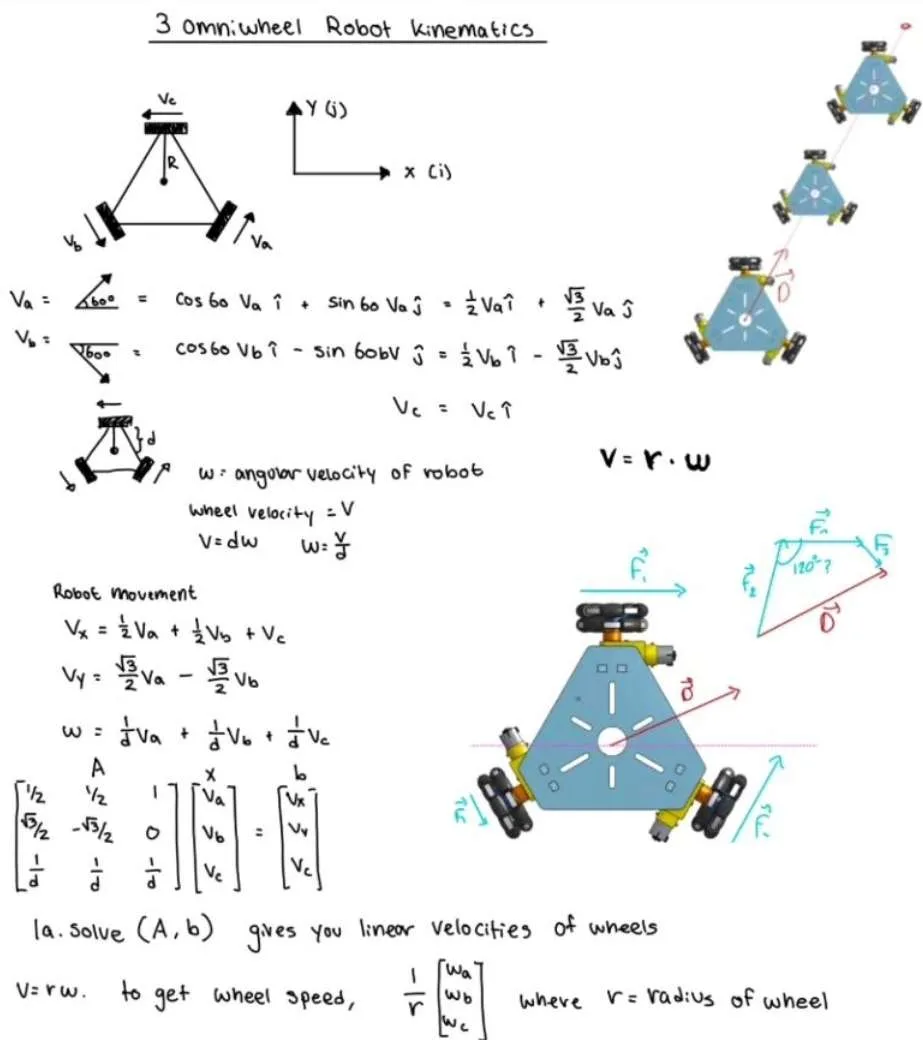
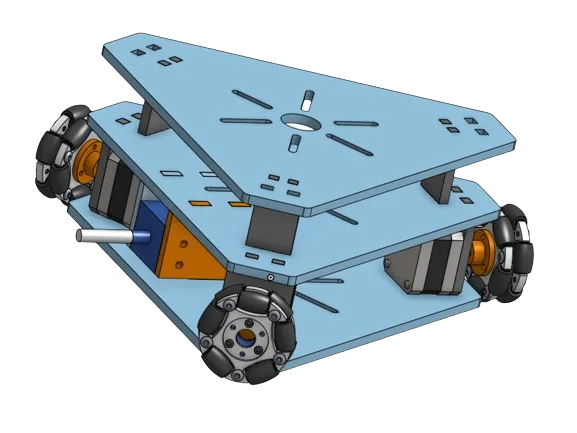
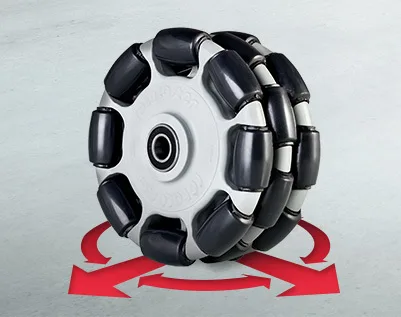
  • Omniwheels let the robot move in any direction without first turning to face that direction. Compared with a conventional differential drive, this allows translation and rotation to happen together. That flexibility makes it easier to position the robot on the table. More information.
  • After reading papers comparing three- and four-wheel layouts, we chose a three-wheel configuration, mainly to keep costs down.
Omniwheels — project illustration

Structure

Structure — project illustration
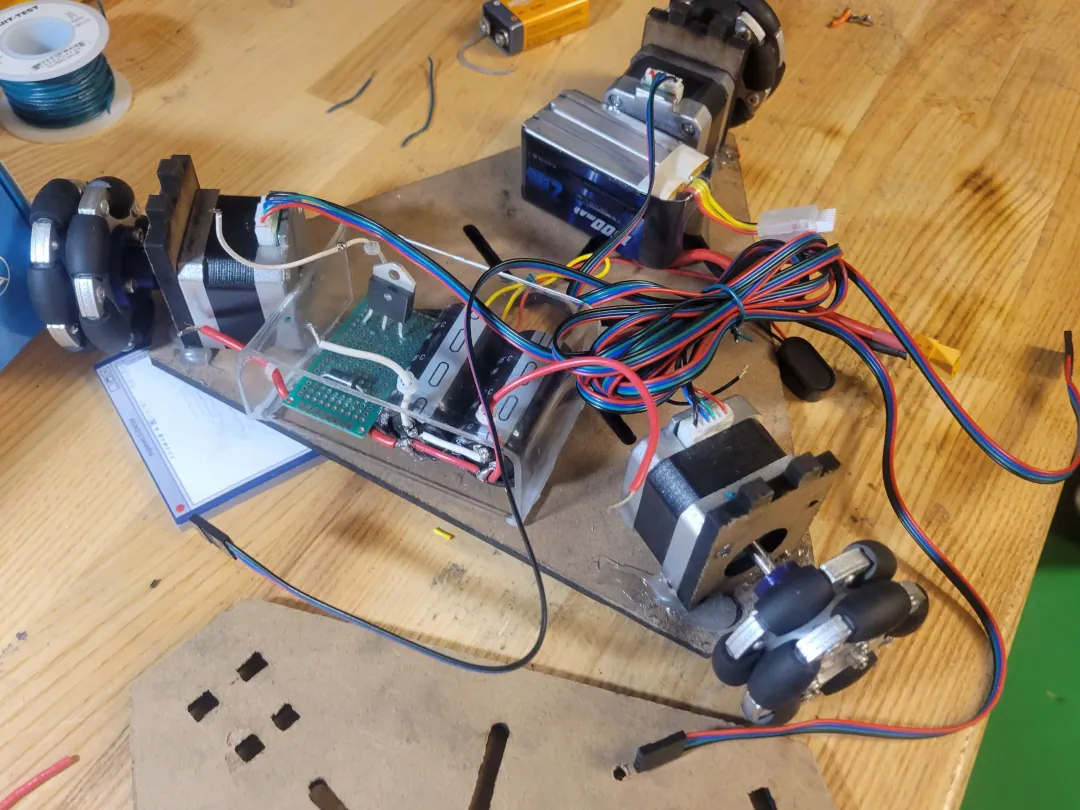
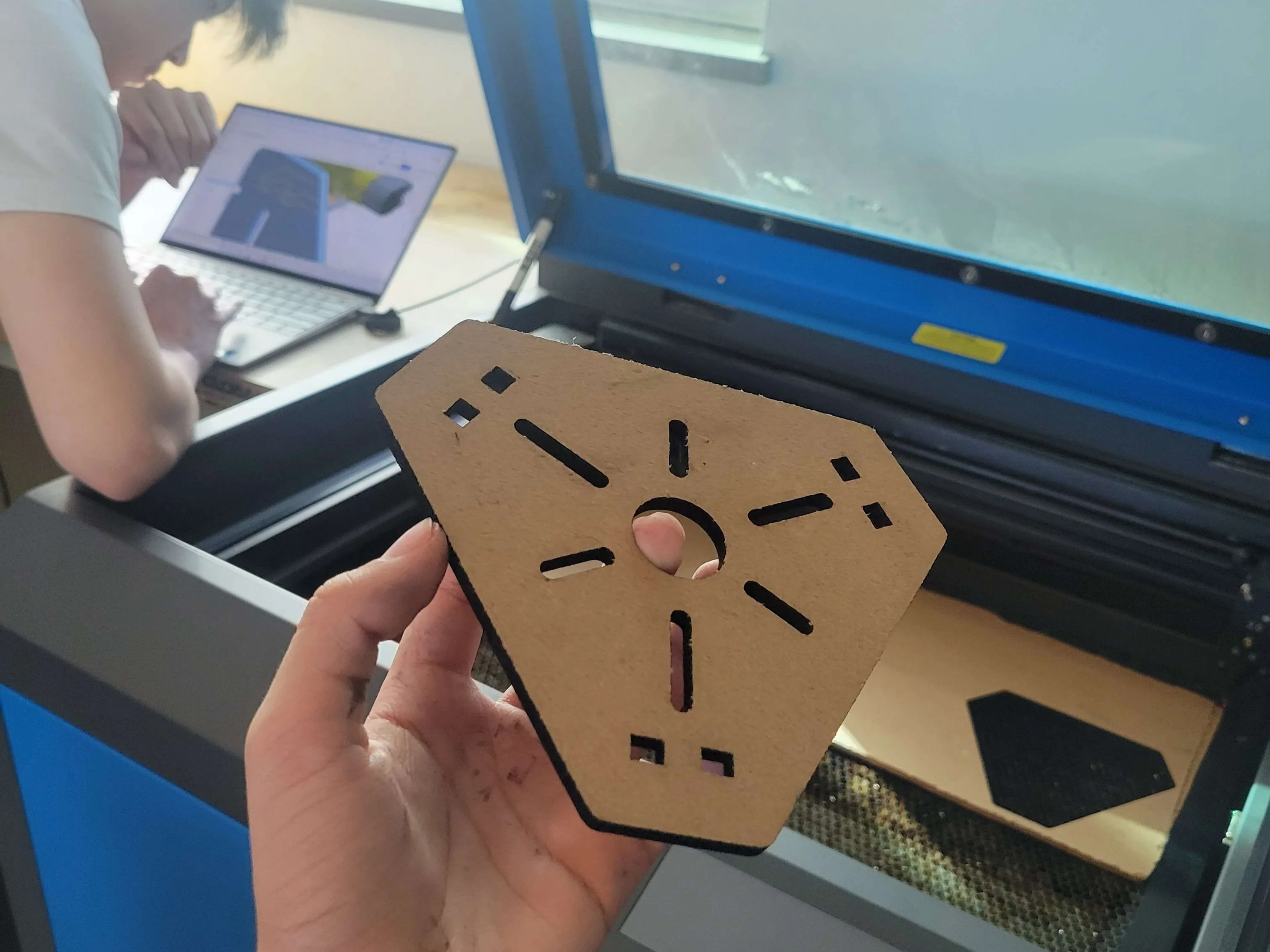
Laser-cut parts.
Structure — project illustration
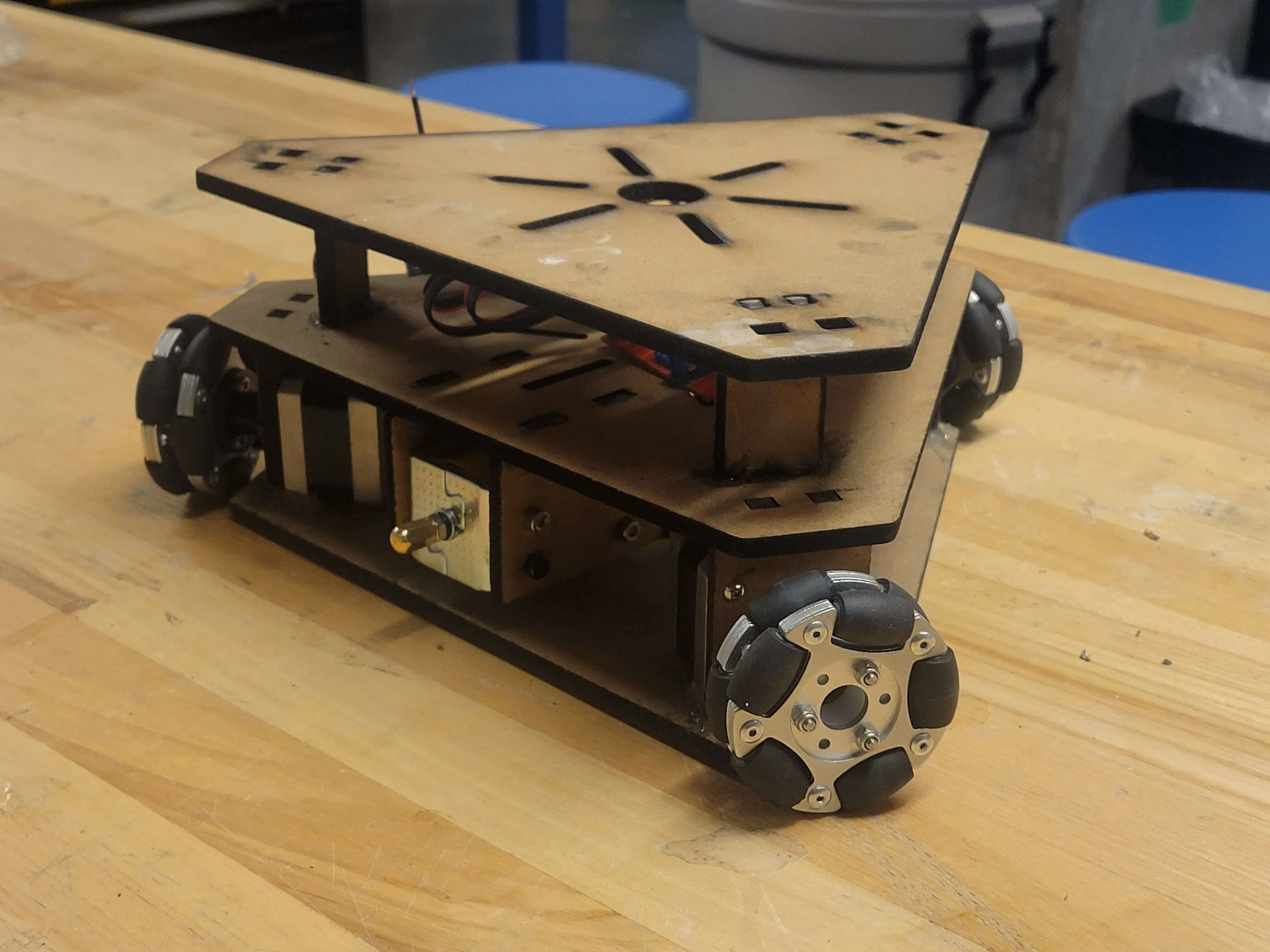
First look.

Electrical


Electrical — project illustration

Motors

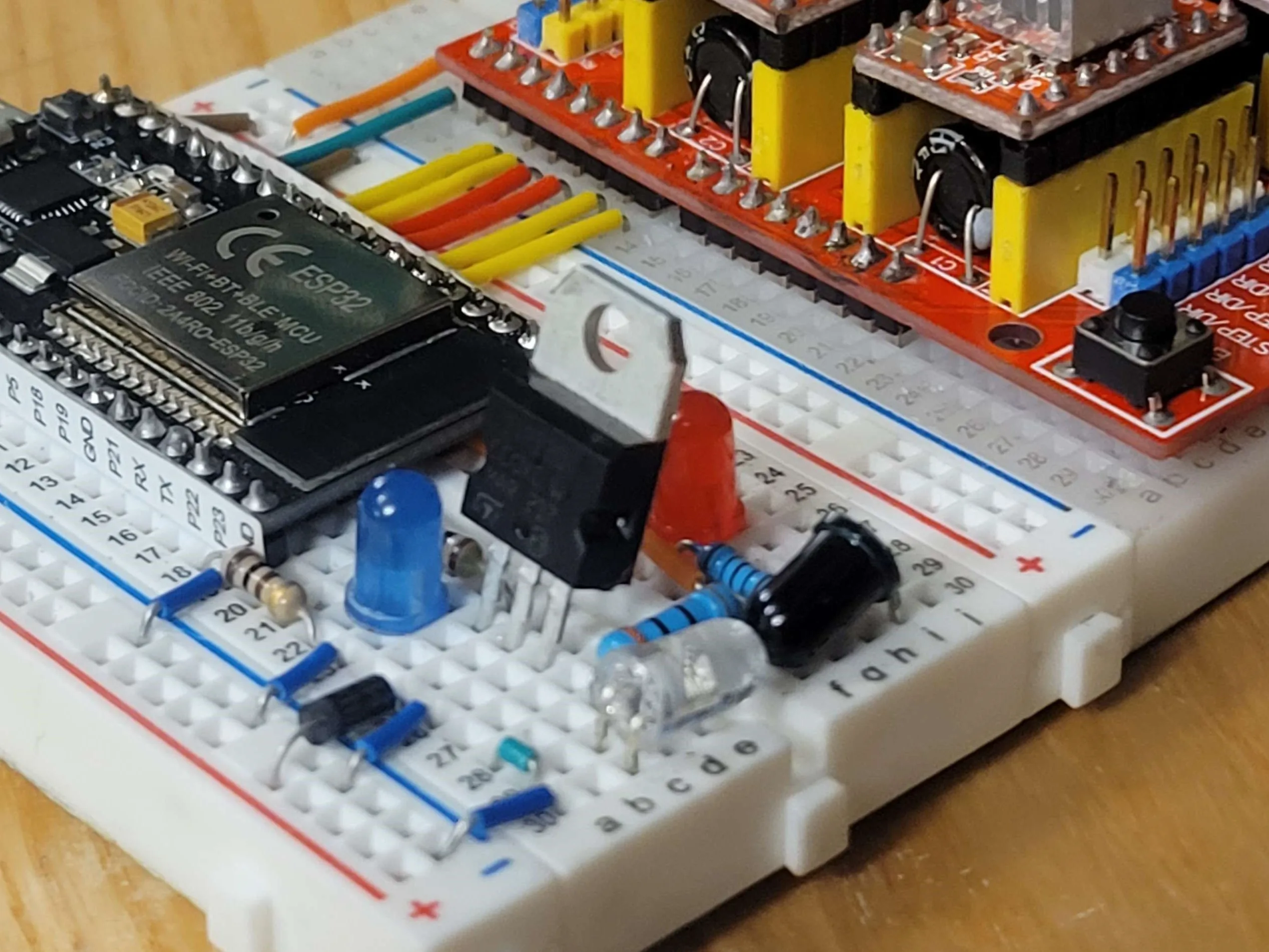
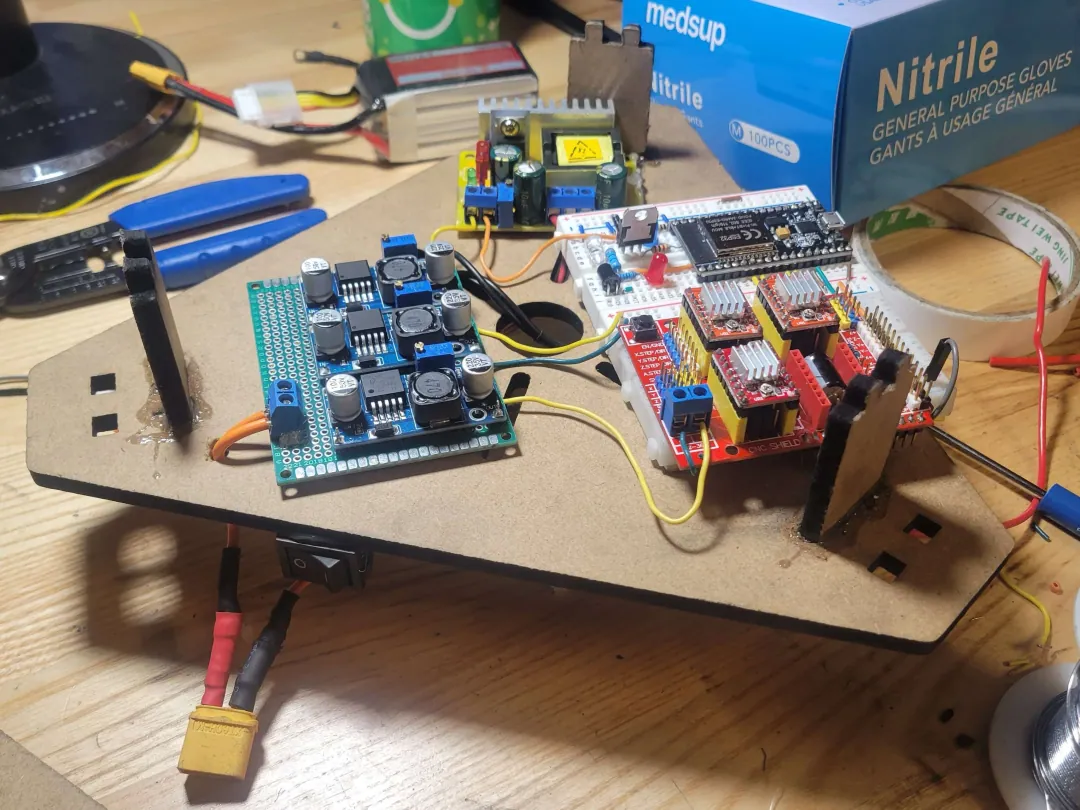
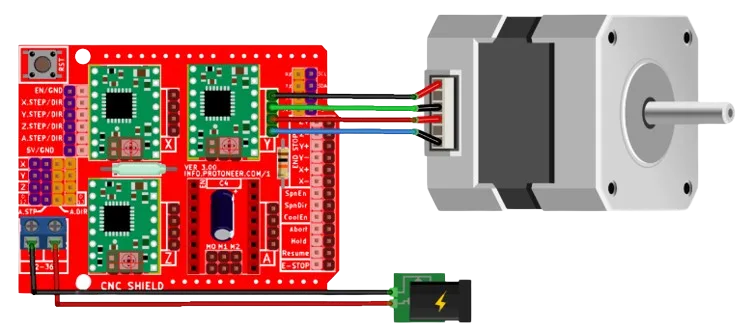
  • We chose stepper motors for their precision, prioritizing positioning accuracy over speed and torque. The CNC shield simplified the wiring and enabled microstepping, increasing the resolution from 200 to 1,600 steps per revolution. Since we used an ESP32 rather than an Arduino Uno, we had to wire the connections manually instead of plugging the shield directly into the controller.

Ball striker


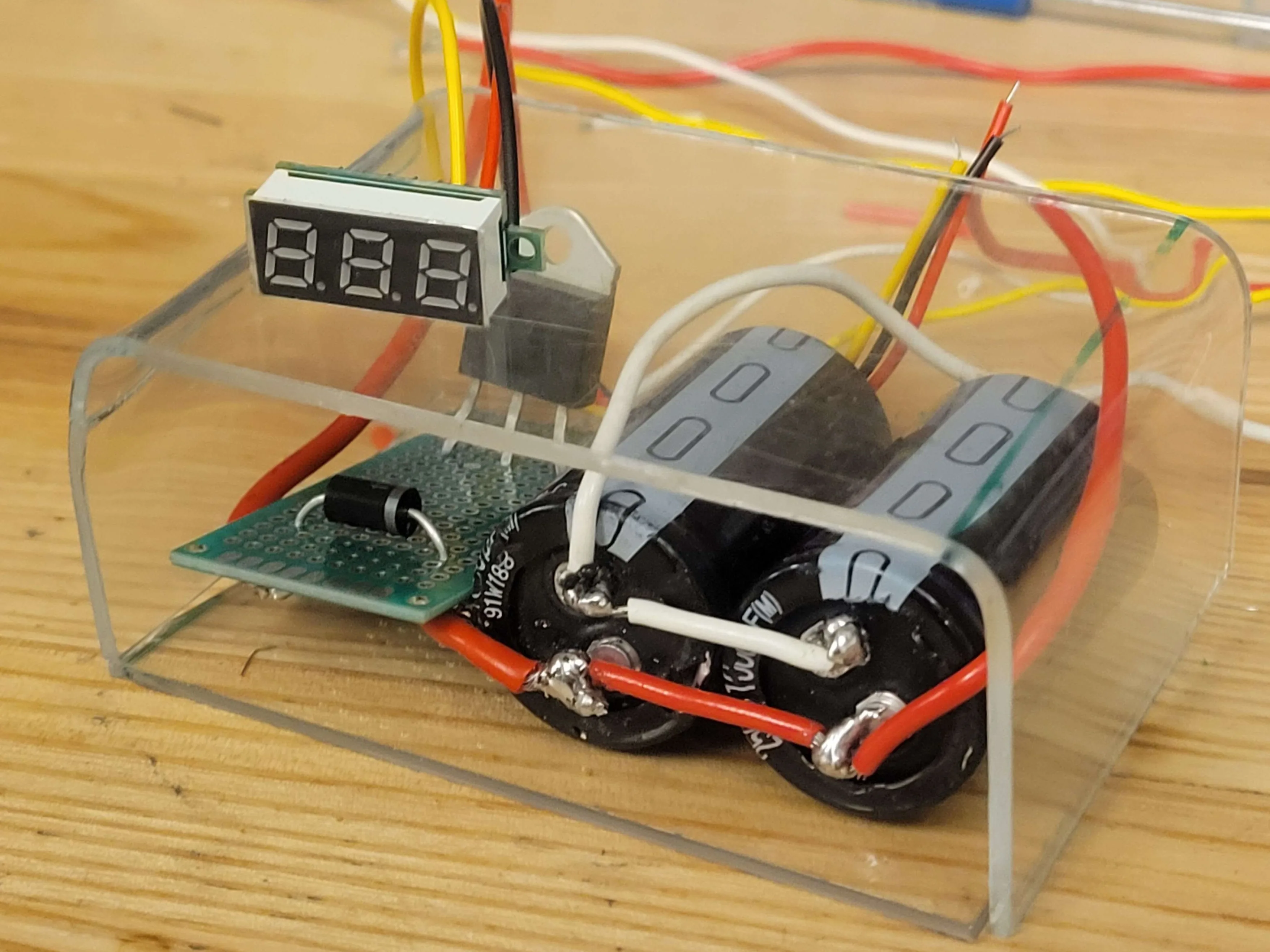
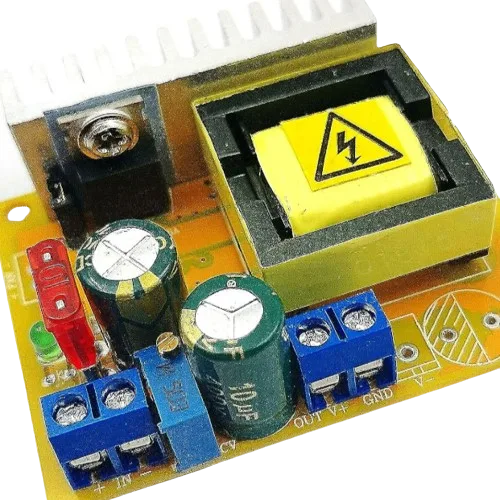
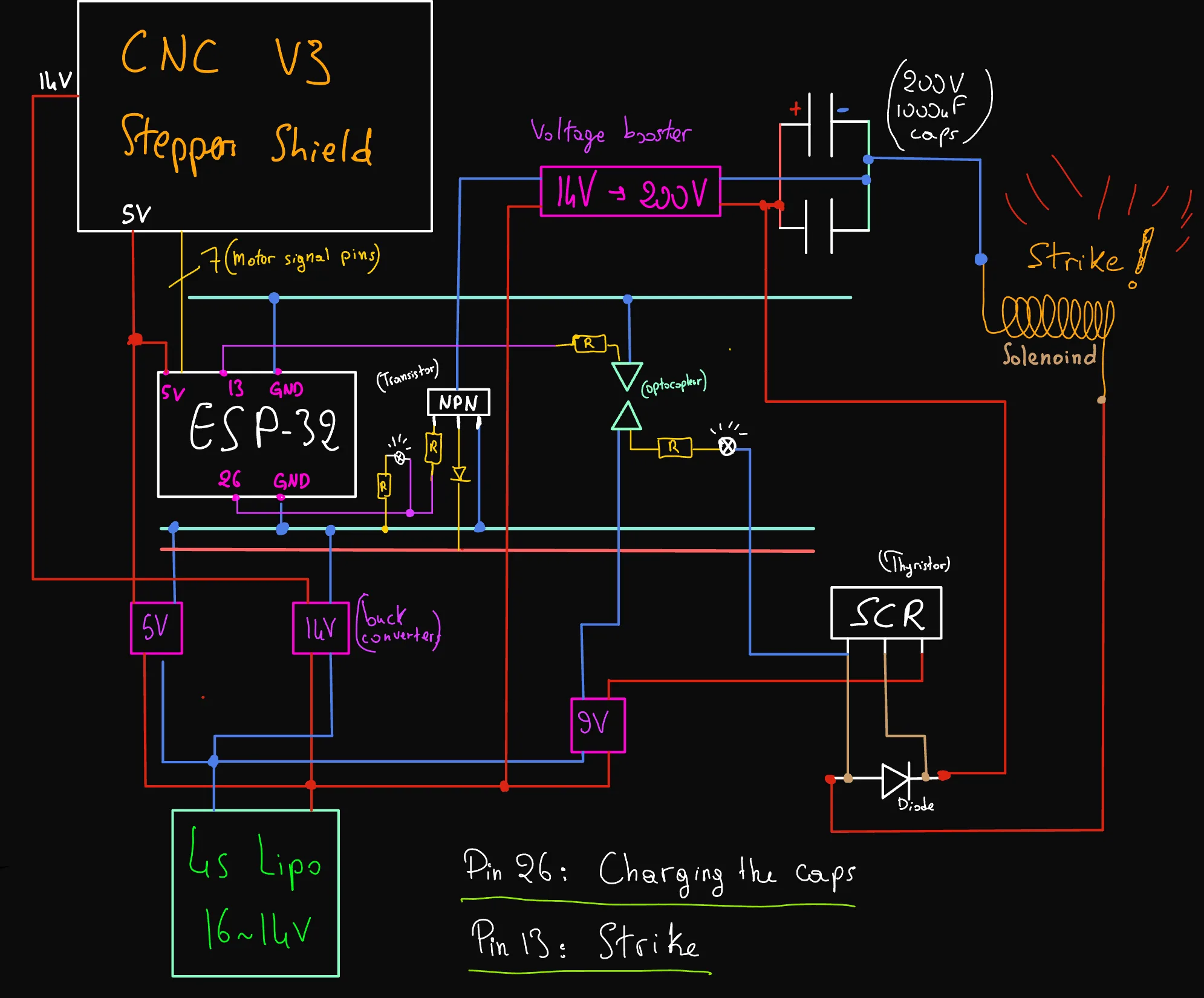
  • A voltage booster raises the supply from 14 V to 200 V to charge the capacitors. Discharging that stored energy through the solenoid drives the kicker forward and strikes the ball.

Ball puncher — project illustration
14 V–>200 V voltage booster
Ball puncher — project illustration
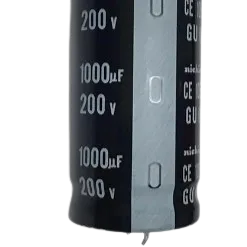
Two 1,000 µF, 200 V capacitors
Ball puncher — project illustration
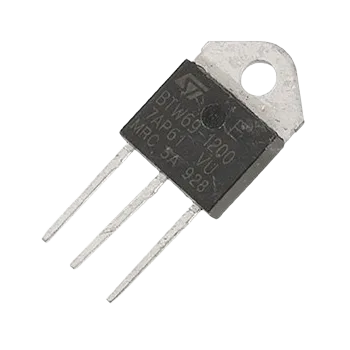
BTW69-1200 thyristor
Ball puncher — project illustration
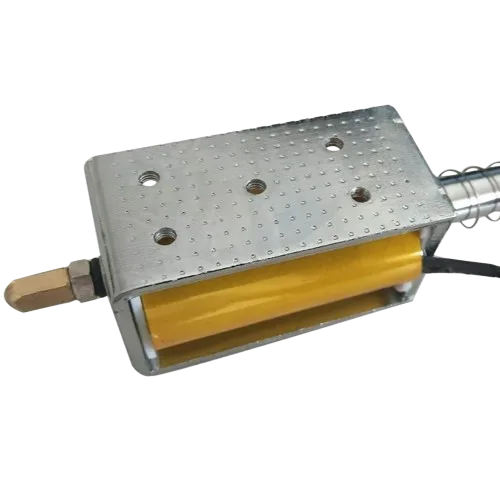
Solenoid
Ball puncher — project illustration

Adjusting shot strength


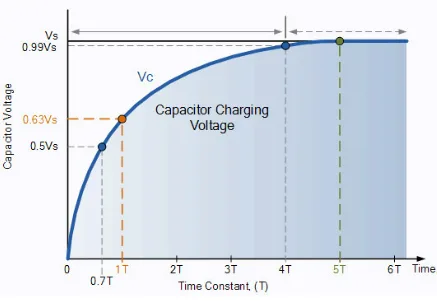
  • A higher capacitor voltage produces a stronger shot. The goal was to offer three settings: weak, medium, and strong. We adjusted the charging time and interrupted the current to the capacitors at different charge levels, giving us a way to vary the force.

Power distribution

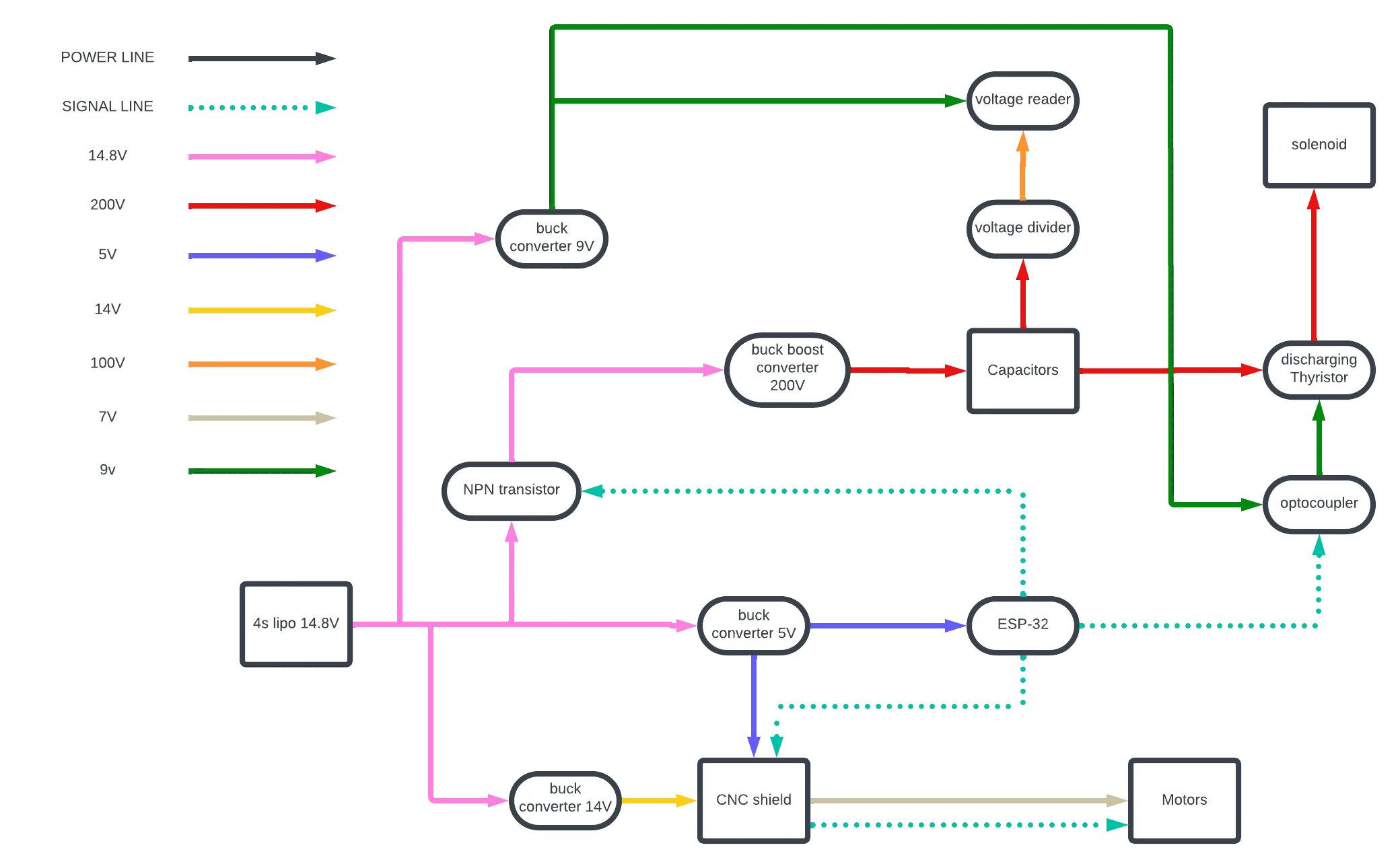
The full diagram includes optocouplers and thyristors, which I explain in more detail in my CoilGun project . It also includes a 4S LiPo battery, a buck converter to regulate voltage, and a seven-segment voltage display.
Power distribution — project illustration

Full circuit and integration

Full circuit and integration — project illustration
Rough circuit sketch on an iPad.
Full circuit and integration — project illustration
Signal circuit.
Full circuit and integration — project illustration
High-voltage capacitors and thyristor.
Full circuit and integration — project illustration
Striker test.
Full circuit and integration — project illustration
First-layer circuit.
Full circuit and integration — project illustration
Second-layer circuit.

Circuit & PCB

  • We were still testing the prototype to make sure the complete circuit worked reliably. Once those tests were finished, the next step was to transfer the design from the prototype wiring to a PCB.
Circuit & PCB — project illustration

Software


You can find the source code here: GitHub
Overview

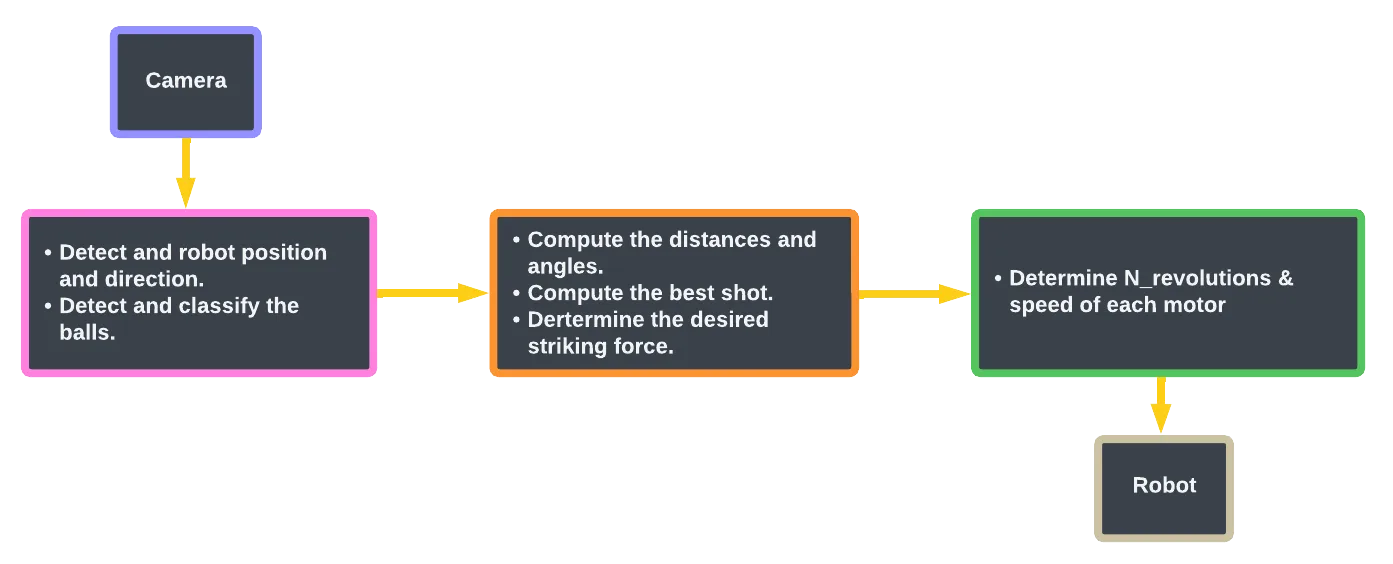
  • An overhead camera provides the view of the table. OpenCV handles ball detection, measurements, and path calculations, then Python sends movement commands to the ESP32 over Wi-Fi. The robot moves to the requested coordinates and orientation before charging its capacitors to 200 V. Discharging them through the solenoid drives the kicker into the cue ball.
Overview — project illustration

Computer vision


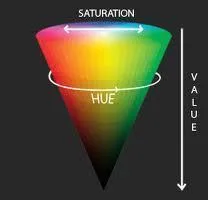
HSV color model

  • HSV is useful for color detection because it separates hue from brightness, making thresholds easier to adjust than with RGB. I use HSV thresholds and masks to isolate the objects of interest under different lighting conditions. First, I detect the table boundary; then I limit further detection to objects inside that area.
  • I also added glare suppression to reduce reflections that could interfere with color detection.
HSV Model — project illustration

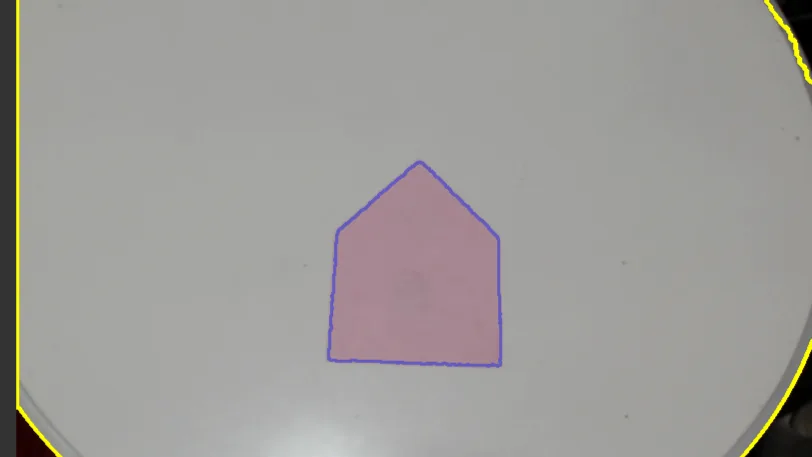
Robot detection

Robot detection — project illustration
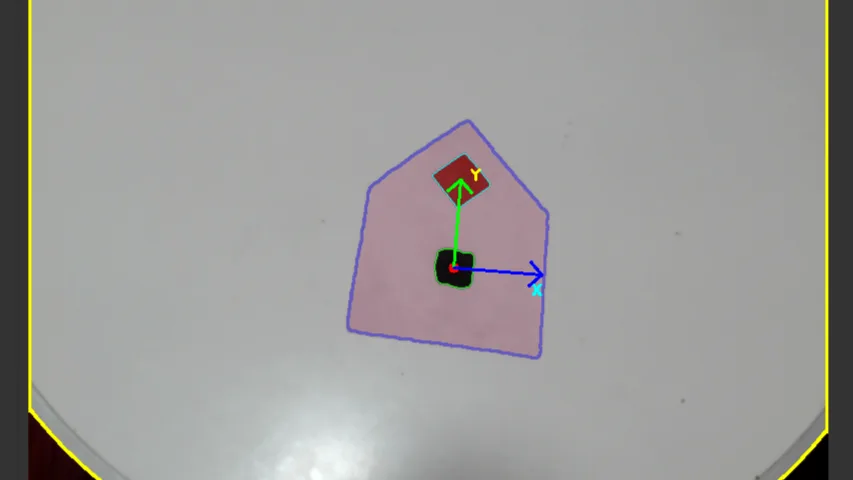
  • Detect the table boundary (yellow contour).
  • Detect the robot within the table boundary (pink contour).
  • We can use cv2.bitwise_and to create these masks.
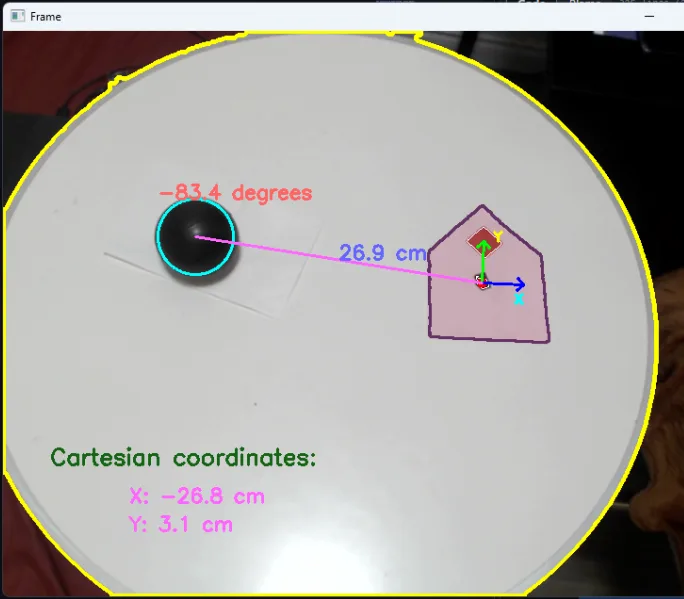
Robot orientation

Robot orientation — project illustration
  • Use the black marker as the robot’s center.
  • Set the Y-axis from the black spot toward the red spot.
  • Define the X-axis at 90° clockwise from the Y-axis.

Calculating distances

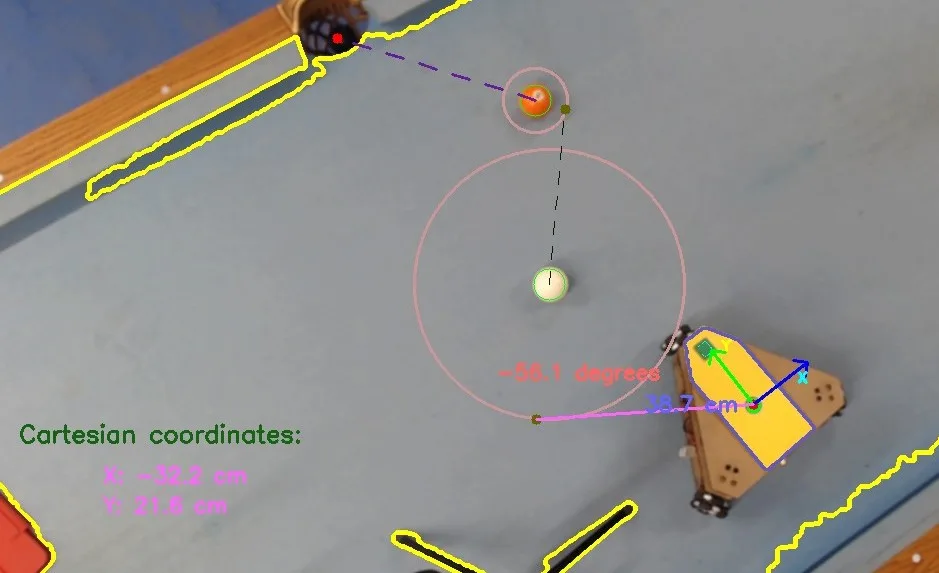
  • I corrected fisheye distortion, re-zeroed the camera using pocket fiducials, and applied color and size filters to detect potential balls.
  • OpenCV represents an image as a grid of pixels. I use the 2D distance formula and cross products to calculate distances and angles, then convert pixels to centimeters using the ball’s size as a reference. The robot is treated as the origin, (0, 0), and projections give each target’s X and Y coordinates relative to it.

Calculating distances — project illustration

Ball detection & classification

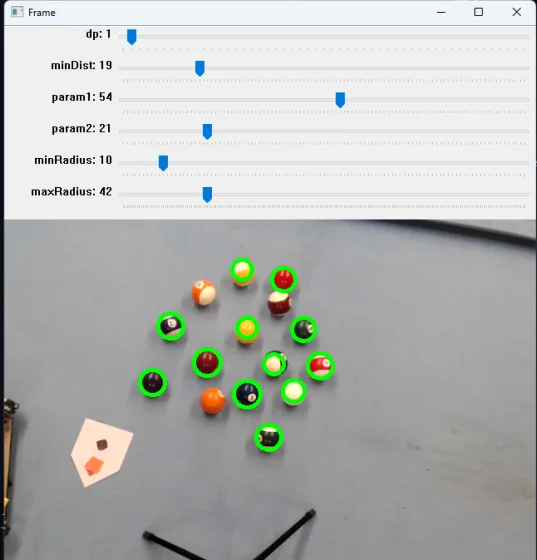
Basic computer vision has its limits, even with carefully tuned Hough-circle parameters. Beyond detecting a ball, we also need to identify which type it is. The planned classification groups are:

  • Cue ball: white.
  • Black ball: the 8-ball.
  • Solid balls: our targets.
  • Striped balls: the opponent’s targets.

We do not need to identify every ball’s exact number or color. For this strategy, solid balls are valid targets, while the opponent’s striped balls must be avoided.
detection & classification of balls — project illustration

Planning the shot

  • Strike position Given the positions of the cue ball, target ball, and pocket, the current calculation measures from the robot’s center to the ball’s center. That would bring the robot’s frame into contact with the ball rather than correctly positioning the solenoid. The next step is to account for the kicker’s offset, choose the required strike angle, and find a collision-free path to that position. I also built a pool-table physics simulation to make these calculations easier to test; more on that below.
Strategy to hit the ball — project illustration

Error mitigation

  • Small positioning errors can accumulate over long distances. To address this, I added a feedback loop that checks the robot’s position and keeps correcting it until the remaining error is negligible.
  • The stepper motors are more accurate than this example suggests. I deliberately altered the calculations here to test whether the correction loop worked.

Physics calculations


Robot movement

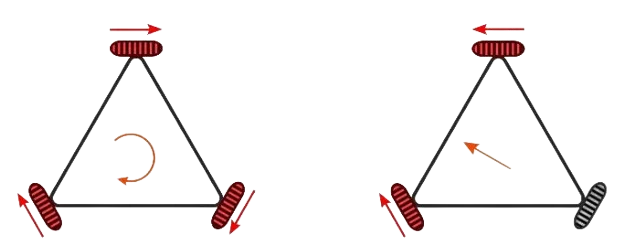
To move from point A to B given their coordinates, target distances and angles must be converted into motor step counts and speeds. There are two approaches:

Polar coordinates

Rotate first, then translate.

Cartesian coordinates

Use vector addition to move from A–>B without rotating.

Polar coordinates

  • Given a target angle and distance, I use the wheel radius to calculate the required motor steps. Rotation and translation are handled separately: the robot first turns to face the target, then moves toward it.
Polar coordinates — project illustration

Cartesian coordinates

  • This approach uses vector addition, with the wheels moving at different speeds so they finish together. Otherwise, the robot would not follow the intended direction throughout the move. For example, if one wheel needs 800 steps and another needs 400, the first runs at twice the second’s speed. Both then reach their target step counts at the same time.
  • Small angles can cause disproportionate step counts between wheels (e.g., 200 steps on Y vs. 3,000 on Z). Synchronizing arrival times requires a 15× speed differential. However, running the slower wheel too slow induces low-speed stepper resonance, while speeding it up forces the faster wheel to spin fast enough to destabilize the chassis and skip steps.
Carterian coordinates — project illustration

Pool table physics

  • To simplify testing during development, I built a physics simulation of the pool table. Given the cue ball, target ball, pocket, and table boundaries, it helps calculate where the robot should stand and which direction it should strike. This lets me test paths in which the cue ball bounces, hits the target ball, and sends it toward a pocket before trying them on the real table.
Pool table physics — project illustration

Firmware


The ESP32 provides Wi-Fi connectivity and controls the motors and solenoid. It joins the same network as the computer and exposes several routes for movement, status checks, and firing:

  • /control: Accepts six motor-control parameters: StepsX, SpeedX, StepsY, SpeedY, StepsZ, and SpeedZ.
  • /status: Reports whether the robot has finished moving.
  • /stop: Stops the robot as an emergency command.
  • /strike: Charges the capacitors, then discharges them through the solenoid. Adjustable charging time controls shot strength.

/control

The goal was to give each wheel its own step count and speed while allowing all three wheels to move together. Doing this directly is awkward because basic stepper control relies on loops and delay. Fortunately, I found AccelStepper , which handles this without manually implementing millis timing and nonblocking motor control.


                            //ESP-32 CODE

//setting up the server route
server.on("/control", HTTP_GET, [](AsyncWebServerRequest *request){
    String stepsX, speedX, stepsY, speedY, stepsZ, speedZ;

    if (request->hasParam("stepsX") && request->hasParam("speedX") &&
        request->hasParam("stepsY") && request->hasParam("speedY") &&
        request->hasParam("stepsZ") && request->hasParam("speedZ")) {

        stepsX = request->getParam("stepsX")->value();
        speedX = request->getParam("speedX")->value();
        stepsY = request->getParam("stepsY")->value();
        speedY = request->getParam("speedY")->value();
        stepsZ = request->getParam("stepsZ")->value();
        speedZ = request->getParam("speedZ")->value();

        controlSteppers(stepsX.toInt(), speedX.toFloat(), stepsY.toInt(), speedY.toFloat(), stepsZ.toInt(), speedZ.toFloat());
        request->send(200, "text/plain", "Motors commanded successfully");
    } else {
        request->send(400, "text/plain", "Invalid parameters");
    }
});


//function to control the motors
void controlSteppers(int stepsX, float speedX, int stepsY, float speedY, int stepsZ, float speedZ) {
    digitalWrite(enablePin, LOW);
    movementComplete=false;
  
    stepperX.setMaxSpeed(speedX);
    stepperY.setMaxSpeed(speedY);
    stepperZ.setMaxSpeed(speedZ);
  
    stepperX.move(stepsX);
    stepperY.move(stepsY);
    stepperZ.move(stepsZ);
  }

//then we put it into loop
void loop() {
    stepperX.run();
    stepperY.run();
    stepperZ.run();
}
                        

                            //Python CODE

//#Send a command to the ESP32 to control motor movements.

def send_command(stepsX, speedX, stepsY, speedY, stepsZ, speedZ):

url = f"http://{esp32_ip}/control"
params = {
    'stepsX': stepsX,
    'speedX': speedX,
    'stepsY': stepsY,
    'speedY': speedY,
    'stepsZ': stepsZ,
    'speedZ': speedZ
}
try:
    response = requests.get(url, params=params)
    print(response.text)
except requests.RequestException as e:
    print(f"Error sending request: {e}")


//#Sample command
v=1
stepsX = 1600  *3*0.2 
speedX = 500   *2*v

# B
stepsY = -1600  *6*0.2
speedY = 500   *4*v

# A
stepsZ = 1600  *3*0.2
speedZ = 500   *2*v
     
send_command(stepsX, speedX, stepsY, speedY, stepsZ, speedZ)
                            
                        
  • Independent control of each wheel’s speed and step count supports both coordinate approaches. Cartesian movement needs one command, while polar movement needs two: one for rotation and another for translation. The second must wait for the first to finish, which is where the ESP_ip_Address/status route becomes useful.
/status

A global variable, movementComplete , starts as False and becomes True when the movement finishes. On the Python side, the program keeps checking /status until the move is complete. Only then does it send the next send_command() command to the motors.


                      //ESP-32 CODE

//global variable
bool movementComplete = false;

//setting up the server route
server.on("/status", HTTP_GET, [](AsyncWebServerRequest *request){
    if (movementComplete) {
        request->send(200, "text/plain", "Movement complete");
        movementComplete = false; // Reset the flag
    } else {
        request->send(200, "text/plain", "Movement in progress");
    }
});


//make "movementComplete" true when the robot is done moving
if (stepperX.distanceToGo() == 0 && stepperY.distanceToGo() == 0 && stepperZ.distanceToGo() == 0) {
    if (!motorsStopped) {
      delay(500);
      digitalWrite(enablePin, HIGH);
      Serial.println("Motors stopped");
      motorsStopped = true;
      movementComplete = true;

}
                        

                            //Python CODE

//#returns True if the motors stops
def check_movement_complete():
    while True:
        response = requests.get(f"http://{esp32_ip}/status")
        if response.text == "Movement complete":
            break
        time.sleep(0.5)  # Poll every half second    

def execute_follow_up_command(translation_steps, motor_speed):
    # Wait for the first command to complete
    check_movement_complete()
    # Execute the second command
    send_command(translation_steps, motor_speed, 0, motor_speed, -translation_steps, motor_speed)

//sample with polar coordinates
if ball_measurements is not None:
    for center, radius, distance, angle, X_coordinate, Y_coordinate in ball_measurements:
        print(f"Distance = {distance:.1f} cm, Angle = {angle:.1f} degrees")

    rotation_steps = -calculate_rotation_steps(angle)
    translation_steps = calculate_translation_steps(distance/100)-100
    print(f"Rotation Steps: {rotation_steps}, Translation Steps: {translation_steps}")

    //translation command
    send_command(rotation_steps, MOTOR_SPEED, rotation_steps, MOTOR_SPEED, rotation_steps, MOTOR_SPEED)
    //rotation command
    threading.Thread(target=lambda: execute_follow_up_command(translation_steps, MOTOR_SPEED)).start()


  • In this example, Python first sends the rotation command, waits for it to finish, and then sends the translation command.
  • Python polls the server periodically, with a delay between requests. Because that waiting loop blocks execution, I run it with threading so the rest of the program and UI remain responsive.
  • This also helps with error correction: I split long movements into shorter steps and recalculate the remaining distance between them to limit accumulated positioning errors.

The remaining routes are more straightforward. For implementation details, see the GitHub repository’s firmware section.


Graphical user interface

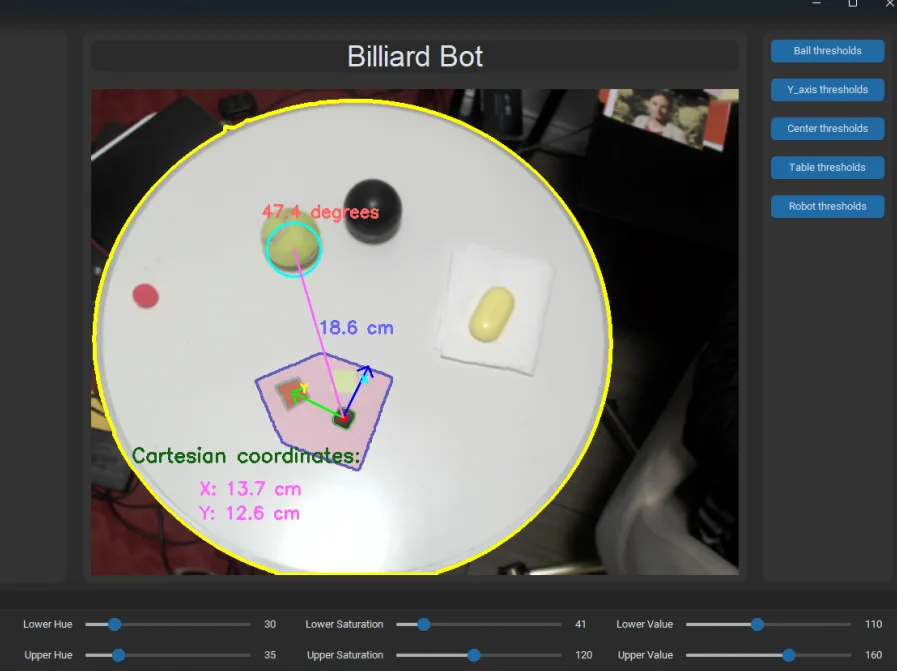
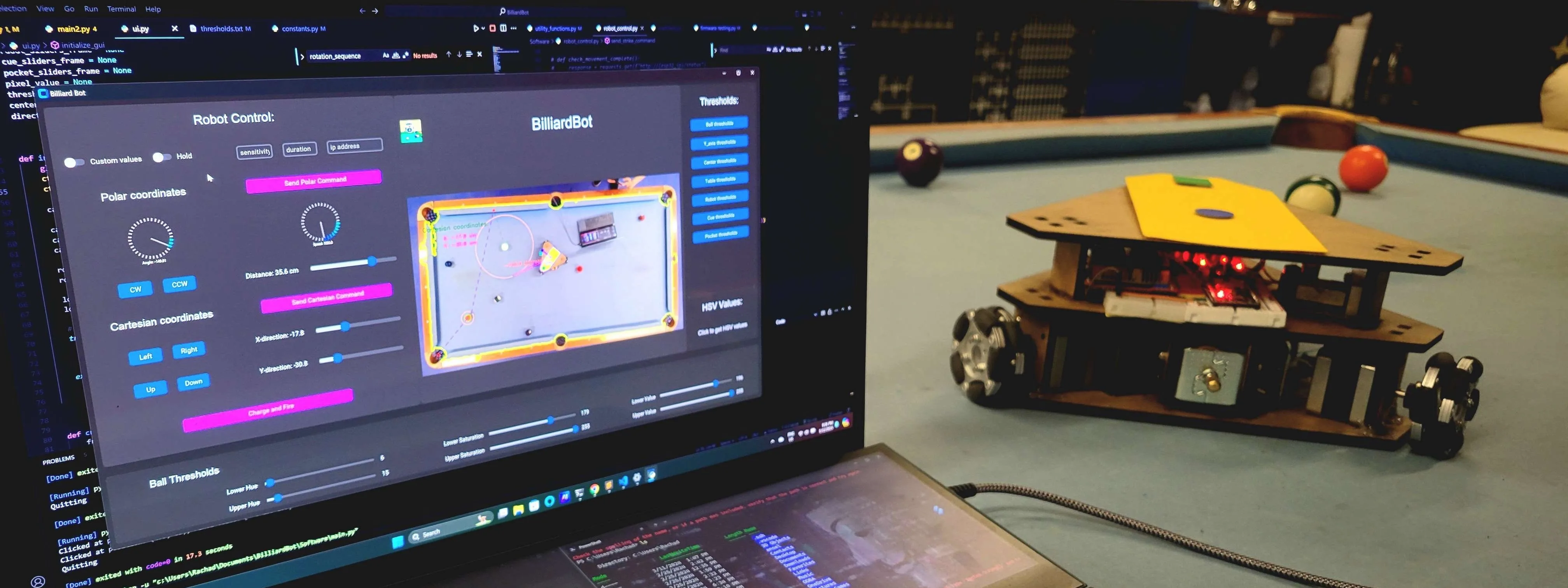
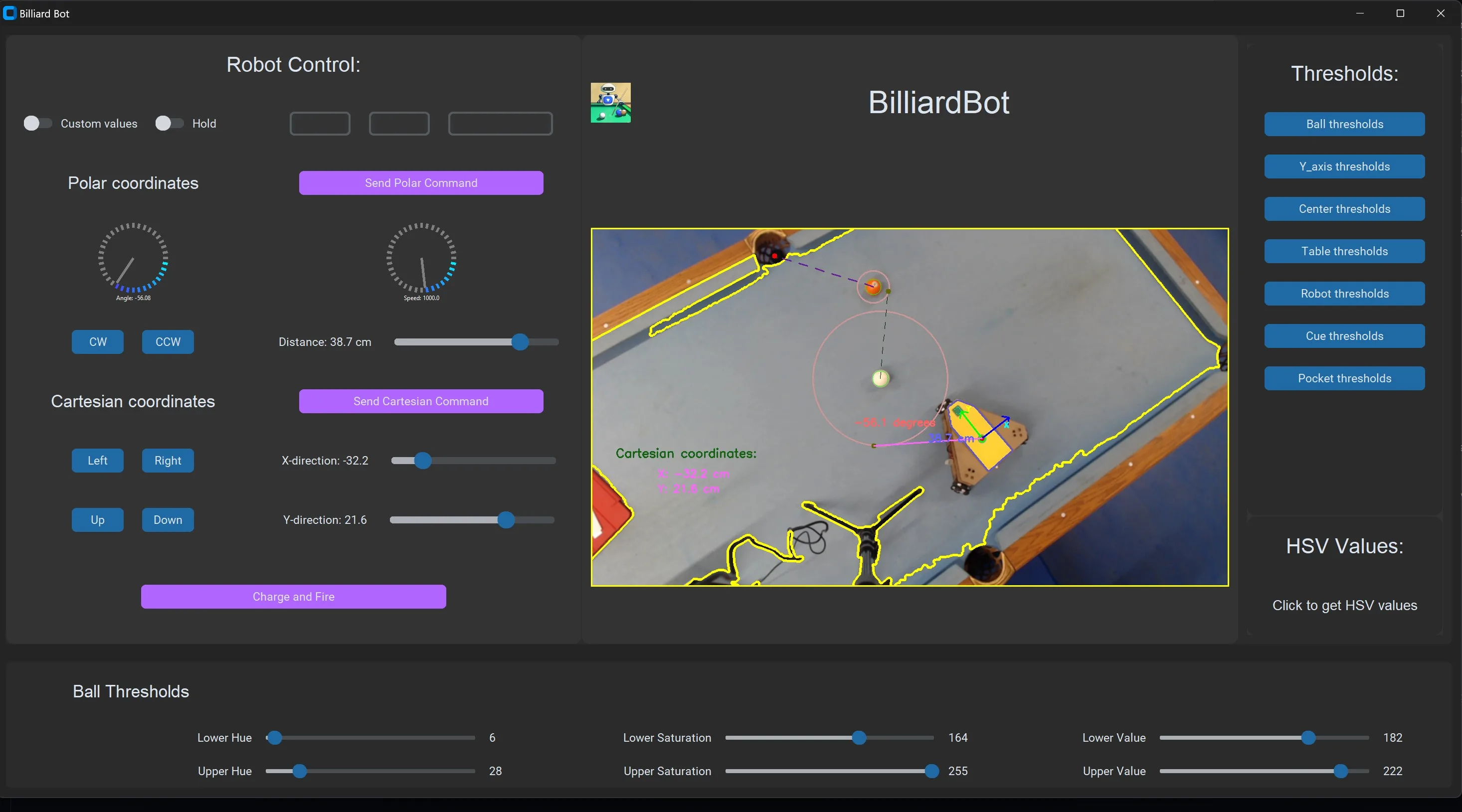
The GUI is mainly a testing tool. I used Tkinter together with CustomTkinter to give it a more modern interface.

    Idea:


  • The idea came from tuning six parameters for ball detection. Re-running the program after every adjustment was slow, so I built a UI that lets me change the values and immediately see their effect on detection.
Idea — project illustration

HSV thresholds and autosave

  • As described in the computer vision section, detection relies on color thresholds. Those settings can stop working as lighting changes. Being able to adjust them in the UI and see the detected contours update in real time made tuning much easier.
  • Closing the program automatically saves the thresholds to a text file. The next time it starts, it reads that file and restores the previous settings.
HSV-thresholds / autosave — project illustration

I also added the robot's control section to perform basic movement commands and the firing sequence.

HSV-thresholds / autosave — project illustration

Integration

Integration test & future improvements — project illustration
side view (speed x2)
Integration test & future improvements — project illustration
top view (speed x2)

Potential future improvements:


future improvements: — project illustration

    Ball detection & classification


  • Train a machine-learning model to detect balls and classify them into four categories: black, cue, solid, and striped.

    Smart game strategy


  • Compare possible shots and choose the one that offers the best chance of scoring several balls in succession. The physics model could also help choose where the cue ball finishes, either setting up the robot’s next shot or leaving a more difficult position for the opponent.
Smart game strategy — project illustration

Smart game strategy — project illustration

    More autonomous play


  • Reduce the need for human input by tracking whose turn it is, waiting while the opponent plays, and resuming when it is the robot’s turn.